The Calculated Columns node enables users to manipulate columns during the data flow using a PQL script. Once the node has been connected to the relevant table, provide a PQL script in order to create or manipulate column values, or perform calculations on existing column values, and add these manipulations as an additional column.
While the other column operation functions offer shortcuts to standard column operations, the calculated column is more advanced. It produces a new column of values using free-form functions based on a user-defined PQL expression.
You can provide a SQL expression by writing or pasting it directly into the quick script editor, or you can open the PQL formula editor. The PQL editor exposes the data model's meta-structures, and features drag and drop functionality and intellisense, so that you can easily pick and choose the required functions and metadata.
Quick Script Editor
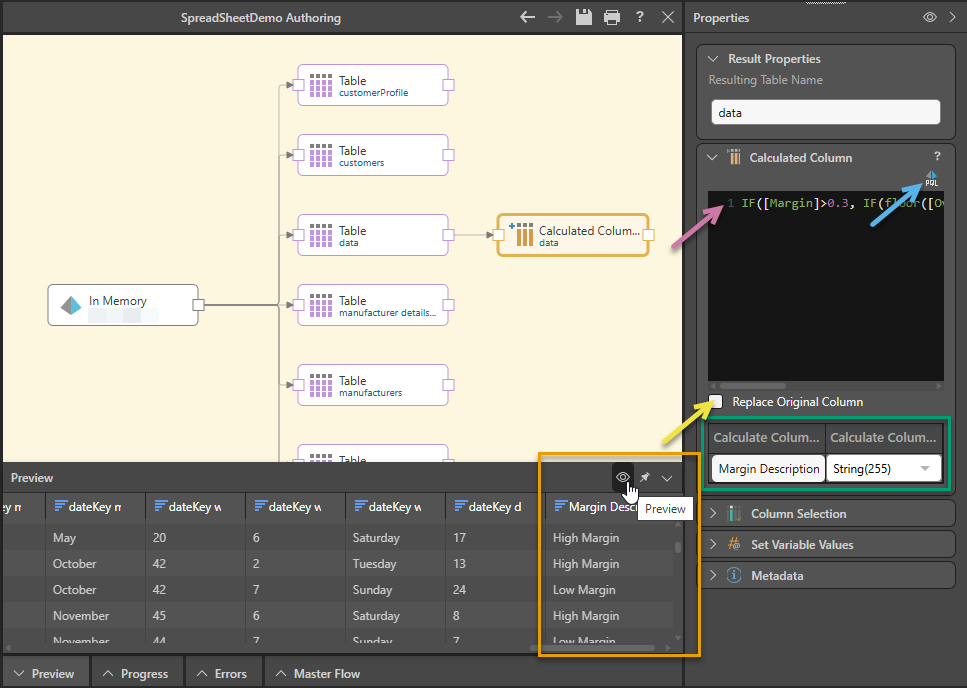
Write a PQL expression in the quick script editor (purple arrow below):
- Use square brackets to select a column
- PQL scripts are case-sensitive - make sure that column headings are written in the correct case
Select the Replace Original Column checkbox (yellow arrow) to replace the existing column with the new calculated column. If this checkbox is clear, the new column will be added to the table alongside the original.
Under Calculated Column Name (green highlight) provide a name for the new column, and under Calculate Column Type select the relevant column type.
PQL Editor
The PQL Editor is a script-writing interface with drag and drop functionality and intellisense. The editor exposes meta structure of the data model, as well as the menu of PQL functions. Using drag and drop functionality you can construct your PQL expression by selecting the required functions and metadata.
Open the PQL Editor by clicking the Advanced Script button (blue arrow above) in the Calculated Column panel.
- Click here to learn more about the PQL editor.
Adding a Calculated Column
Step 1: Add your node
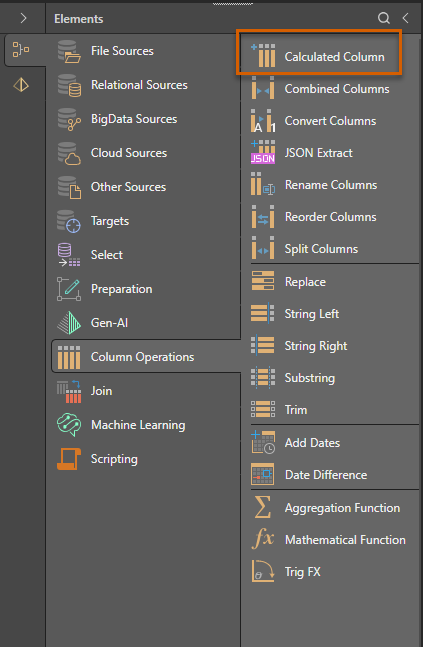
Drag the Calculated Column node onto the canvas and connect it to the relevant table.
Step 2: Write your PQL Script
You can write your script in one of the following locations:
- In the Script window (purple arrow above), you can write your PQL expression directly.
- You can also click PQL Editor (blue arrow) to open the PQL editor, where you can select your required functions, columns, variables, and elements for your PQL expression.
- Click here for more information about PQL
Type the following script:
IF([Margin]>0.3, IF(floor([OverHead])> 100, "High Margin with Overhead", "High Margin"), "Low Margin")
Select the following options:
- Replace Original Column: Clear this checkbox (yellow arrow above), to add the new calculated column to the table alongside the original column.
- Calculate Column Name: Give your new column the name "Margin Description" (green highlight).
Step 3: Preview your Result
 Click the Eye icon at the top of the Preview panel or Properties panel to preview the result. As shown in the initial example (orange highlight above), the Margin Description column is shown in the preview.
- Click here for more information about previewing
Example Calculated Columns
 Example: Sum
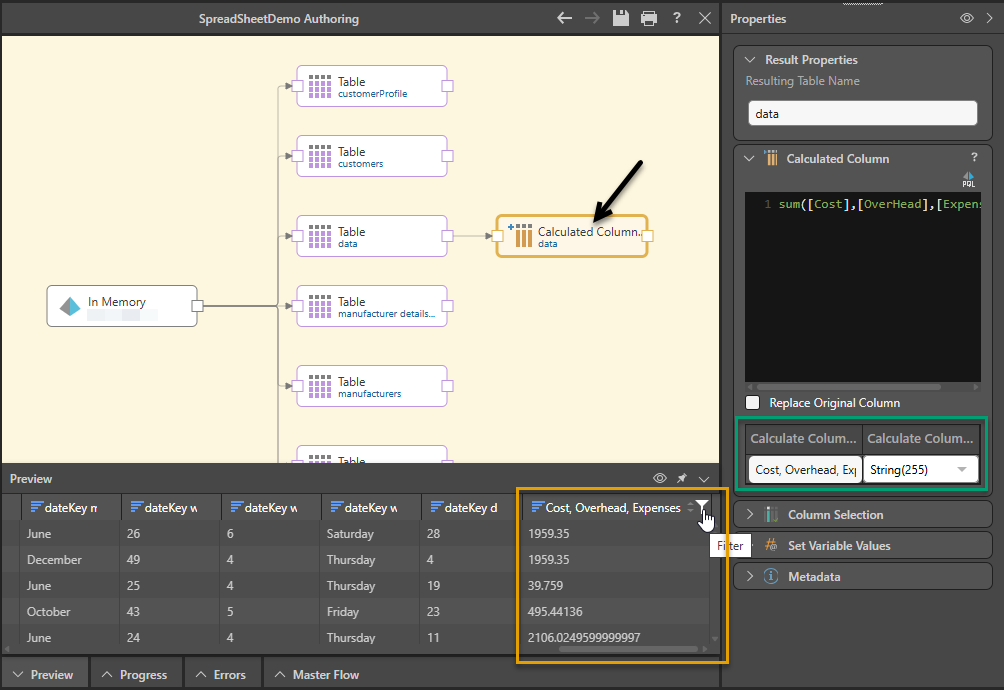
Below, the PQL sum function has been applied to create an additional column combining the values from the Cost, Overhead, and Expenses columns:
sum([Cost],[OverHead],[Expenses])
Example: If Statement
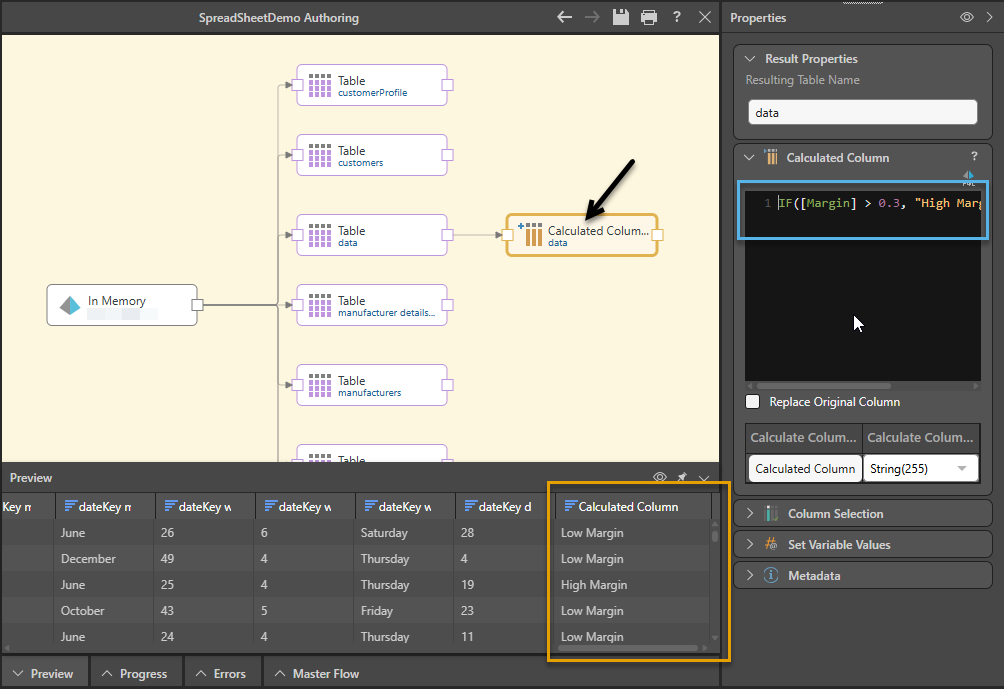
In this example, an If statement is entered into the script window to generate a new column that will return a result of either "High Margin" or "Low Margin", based on the values of the Margin column. If the margin is greater than 0.3, the calculated column will return High Margin; if it's equal to or less than 0.3, it will return Low Margin:
IF([Margin] > 0.3, "High Margin", "Low Margin")
Example: Case Conditional Logic
Case conditional logic enables you to build a decision within the result of the formula. The index of the given criteria should match the index of the outcome. The syntax for a case statement is:
- <criteria_set>: Insert the set of criteria (columns)
- <outcome_set>: Insert the index of outcomes - these are the results that should be returned when one of the criteria is met. The outcome set index should match the criteria set index.
- <default_value>: Insert the default value that will be returned when the given criteria are not met
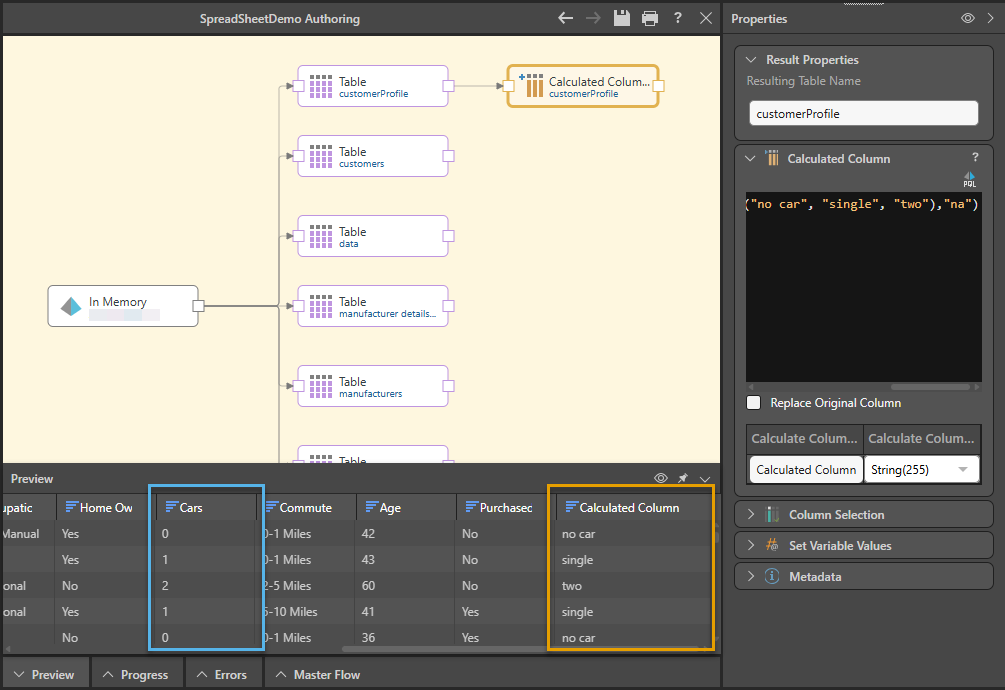
In this example, a column is added with the number of cars for each customer, based on the following statement:
case(criterias([Cars]=0,[Cars]=1,[Cars]=2), dataSet("no car", "single", "two"),"na")
If the number of cars is 0, the statement will return the string "no car". If the number of cars is 1, "single" will be returned, and if it's 2, "two" will be returned. If the number of cars is not equal to 0, 1, or 2, then "na" will be returned.
Example: Case Conditional Logic 2
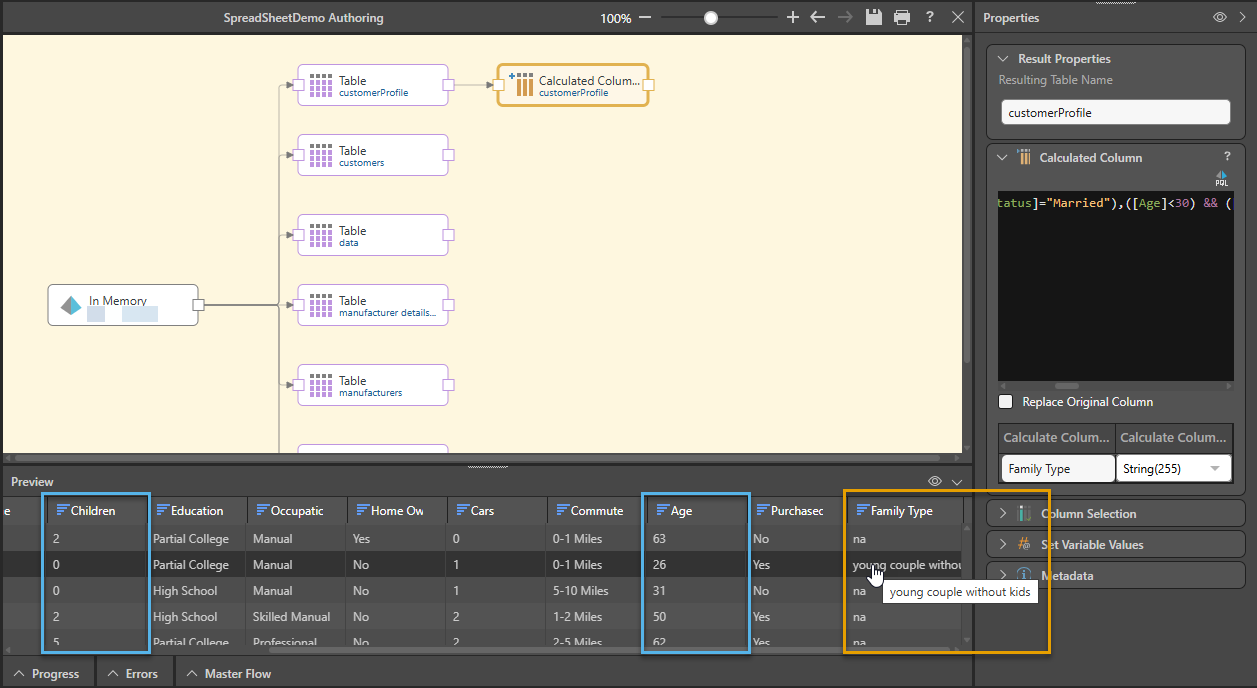
In this example, the statement will return a column with the following strings: "young couple without kids," "young couple with kids," "near empty nesters," or "na." The results returned will depend on combinations of the following criteria: age, number of children, and marital status.
- Where age < 30 and children = 0 and marital status = married, "young couple without kids" is returned
- Where age < 30 and children > 0 and marital status = married, "young couple with kids" is returned
- Where age > 64 and children > 0 and marital status = married, "near empty nesters" is returned
- Where none of the above criteria sets match the customer profile, the default value of "na" is returned.
In PQL the statement is:
case(criterias(([Age]<30) && ([Children]=0) && ([Marital Status]="Married"),([Age]<30) && ([Children]>0) && ([Marital Status]="Married"),([Age]>64) && ([Children]=0) && ([Marital Status]="Married")), dataSet("young couple without kids", "young couple with kids", "near empty nesters"),"na")
Note that in this example, each criterion in the <criteria_set> contains three criteria. Enclose each criterion in brackets (), and use && to join each set of 3 criteria as one criterion within the <criteria_set>. As usual, use a comma as the delimiter between each of the criteria in the <criteria_set>: ([Age]<30) && ([Children]=0) && ([Marital Status]="Married"),
Related information
Common Properties
There are a number of fields that are present in the Properties panel when you have any of the preceding nodes selected on the canvas. These fields include Result Properties, Column Selection, Set Variable Values, and Metadata.
- Click here for more details about the Common Properties